
If you work with your hands, Hub pays you, on top of your regular paycheck, to wear your phone strapped to your head with a band while you work. The phone records, and you get paid for every hour of recording that’s accepted. The site is new and mostly aimed at people in the US.
Hub is not a scam. That’s what I wanted to find out: whether it’s a legit site where you actually earn money, or one you’re better off staying away from.
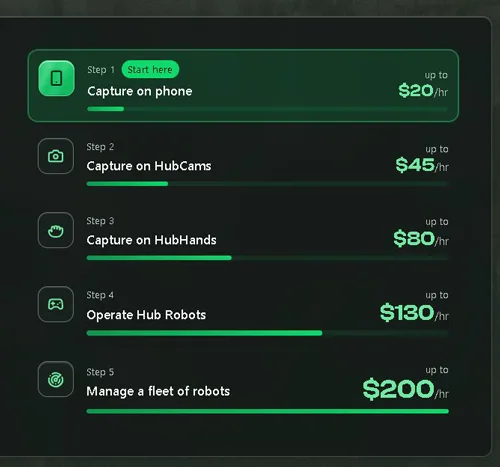
app.hub.xyz shows you up to $20 an hour with your phone and up to $200 an hour if you move up through all 5 tiers of robotic equipment. The site looks clean, and it seems like all you have to do is strap your phone to your head, work, and get paid. It’s not quite that simple, and if you start without knowing how things work, you can waste a lot of time.
Below, I’ll tell you what I found after I signed up, so you know whether Hub is worth your time before you create an account.
What is Hub and how does it work?
On Hub, you film chores around the house or tasks at work. These are things you do anyway, like cleaning your room, doing the dishes, or working a shift at a store or in a kitchen. You get paid for the videos, and you don’t need a resume.
You film in first person. The camera goes on a head strap or a chest mount, and it’s angled 45 degrees down toward your hands.
Your videos end up training robots and AI models that work with things in the real world. For a robot to fold a shirt or turn a wrench, it needs to see human hands working in a real place, from the point of view of the person doing the work. It has no way to learn that from text on the internet. That’s why tech companies are interested in videos of people washing dishes or fixing a car.
Hub is a site with small jobs where you get paid for each one, and it collects videos and data for AI from a lot of people. It’s not like a typical survey site, where you check boxes, and it’s not a passive income app either, because you do the work yourself, with your own hands.
It’s because you’re filming in your home or at work that I want you to know who’s behind the site. You should never send videos like these to a site you don’t know. The company details might seem boring, but I think they’re necessary.
From what I found, app.hub.xyz is the Hub Data, Inc. portal for the people who do the filming. Hub’s privacy policy lists Hub Data, Inc. as the company that runs the site, and the policy was last updated on October 9, 2026. The founders are Armin Kiani and Tim Sprecher. Kiani is the CEO and Sprecher is the COO, and both Y Combinator and that same privacy policy confirm them as founders. It’s a U.S. company registered in Delaware, and its Y Combinator profile says it launched in 2024. It also has a local subsidiary in Brazil, HUB AGENCIA DE DADOS LTDA.
If you’re 18 and already work with your hands, Hub looks like a new, easy way to make extra money online. But how easy it looks doesn’t tell you whether it’s worth your time. The best way to find that out is to understand how it works, and you can only see how it works by looking at the ways to earn. They also show how much time and effort you need to put in to make money.
Hub doesn’t have many ways to earn. I go through them one at a time below, so you can see them all before you decide whether to sign up.
Record your own work
I went through my account and found strict rules about location, equipment and clip review. A lot of beginners don’t expect them, because the idea seems really simple: you strap your phone to your head and do your usual work or chores around the house, without talking and without editing, and you get paid by the hour.
I’ll start with location, because it decides which app you use and whether you can work at all. A lot of people get confused when choosing the app. For recording at work, there’s Shift, which only works in the United States. If you open it from another country, you get a message saying Shift isn’t available there yet. Hub’s main mobile app is Hub Capture, which used to be called Minute Data. Google Play and Hub Facts say people in the Americas can use it for household chores done at home or for approved tasks at work. In my account, I also saw a warning that Hub has to confirm your real location and that you have to be in the United States. And in the same place, it says a VPN or a hidden location can get your account blocked. So check that you live in a supported region before you order the kit.
First, you create an account and verify a real mobile number. Without it, you can’t order the equipment or connect the app. You log in to Shift with that exact number after you download the app and enter your invite code. Don’t record at work without clear permission from your boss.
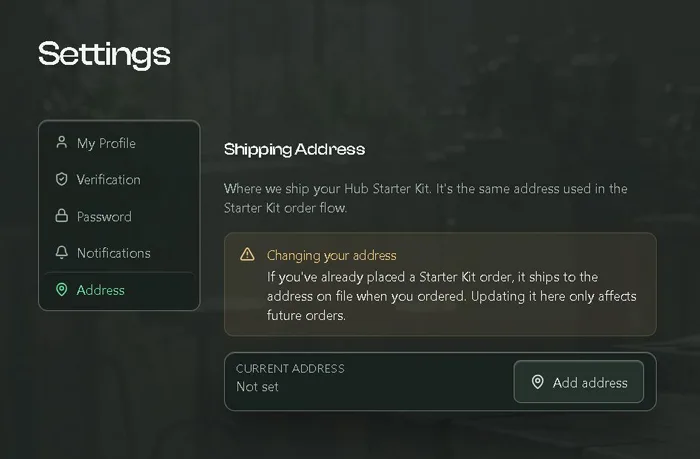
You don’t pay anything for the equipment. The Starter Kit has a head strap and a phone mount, and Hub ships it to you for free. In your account, you add your address in Settings -> Address, under Shipping Address. If you haven’t ordered yet, tap Add address, save your street address, and only then place your order. The address that counts is the one saved when you order: the same screen says a kit that’s already been ordered ships to the address saved at that time, and anything you change afterward only applies to future orders. You can also start recording before the kit arrives, with a regular phone head strap, if you have one.
The clips go to robotics companies that use them to train physical AI models, so what they care about is your hands: how they grab, lift, fold or assemble things. That’s why the phone goes on the strap with the camera pointing down toward your hands, at about a 45-degree angle. You tap record in the app and do your task like you normally would, without describing what you’re doing. The clip stays raw, filmed from your point of view, so you don’t cut or edit anything afterward.
You film and upload the clip, and up to this point it’s simple. The hard part is the review: a clip doesn’t count toward your balance until Hub reviews it, and a rejected one earns you $0. Hub rejects clips that fall under any of these rules:
- Fake or staged task: you pretend to work just for the camera
- Static frame: the camera sits on a wall, the ceiling or a monitor, and your hands don’t move
- Filming another screen: you record a TV, a monitor or a phone screen
- Repeated motion with no real task: you wave your hands over and over to log more time
- VPN or hidden location: besides the rejected clip, you also risk getting your account blocked, as I mentioned above
For approved clips, the money goes into YOUR BALANCE on the dashboard. Withdraw it as soon as your balance clears review. I explain how to withdraw and when Hub asks for your ID in the payment section.
If you want to make money online from home without a phone on your head, there are a few good sites to compare with Hub. The closest is micro1, which is also focused on AI: paid AI training and evaluation tasks for people who work remotely. FireFaucet is for simple tasks with no filming, on your phone or computer: paid surveys, quick offers and small tasks. Pawns is good for beginners and pays you for sharing the internet you’re not using and answering short surveys in your spare time.
Bonus and Daily streak
You don’t get money online from the Bonus tab just for logging into your account. You get a percentage on top of your base pay if you film every day, and the tab keeps count of the days.
I opened it from the dashboard on app.hub.xyz. It’s the white tab in the middle of the top menu, between Record and earn and Referral. The screen says EVERY BONUS RUNNING NOW in big letters, and the DAILY STREAK card is right there too. The card shows how much of the required hour you’ve recorded today, how you did over the last 14 days, and how much you’ve earned from your streak. Mine showed 0min of 1h recorded today, and my streak earnings were $0.00.
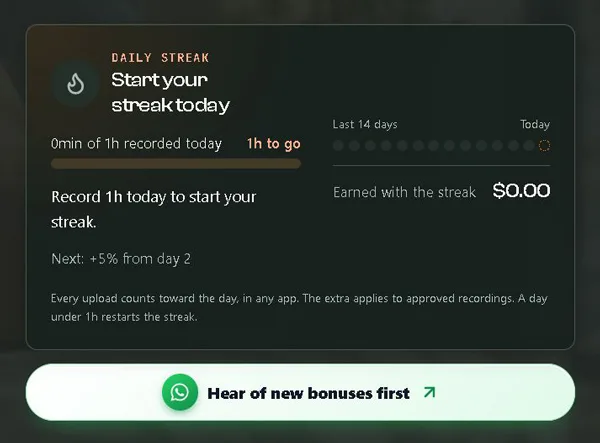
The Bonus tab also explains how the streak starts: record one hour today, and starting on the second day you get 5% extra. The minutes don’t have to come from the same app. Hub adds them all up, both the ones you upload from Hub Capture at home and the ones from Shift at work.
The percentage only applies to approved recordings, so you get nothing extra on anything that’s rejected. And you have to get the full hour in every day. At 59 minutes, your streak goes back to zero.
The Bonus tab isn’t the only place where you can see your streak and active promotions. There’s also the BALANCE button in the top right corner, which showed $0.00 for me. It takes you to your earnings and streak status, which you can also reach by going through the main tabs. If you tap it while you’re on Record and earn, it takes you to your balance and payouts, which I write about below. The full tracker, with all 14 days, stays in the Bonus tab.
On Hub’s official information page, you’ll also find three bonuses that raise your pay:
- Boosted Tasks: priority tasks that pay up to $8–$9 per approved hour, compared to the base rate of $5–$6, and you keep whatever rate was in place when you recorded
- Blitz Periods: an extra percentage on every approved recording while the countdown in the app is running
- Diversity Boost: higher hourly pay for varied tasks recorded in different rooms or places
Hub announces new bonuses on WhatsApp first. Blitzes and urgent tasks expire fast, which is why Hub uses the WhatsApp channel instead of email. You get there from a white button with the green WhatsApp icon under the DAILY STREAK card. It says Hear of new bonuses first. It took me to the official regional channel, Hub USA, which had 177 followers. Other followers can’t see your number or your name, because it’s a channel.
How do you refer a friend?
On Hub, you earn money from every hour your friends record in Shift and Hub approves, for as long as they keep working. You also get a share of their friends’ hours. On most sites where you make money online doing small tasks, you get a small sign-up bonus for each friend you bring in, and then nothing.
The amount depends on the level, and it drops 30 days after each person signs up. For each approved hour, you get:
- Your friends, in their first 30 days: $2
- Your friends, after their first 30 days: $1
- Their friends, in their first 30 days: $1
- Their friends, after their first 30 days: 50 cents
During Referral Blitz periods, which are announced in the app, the amounts go up for a while. Even without a Blitz, on paper the amounts are higher than on almost any survey site. If 10 friends each got 10 approved hours a week in their first month, that would mean $200 a week from the first level alone.
The catch is that money only comes from people who actually get approved hours. First, your friend has to live somewhere Hub is available. Shift is US-only, and the basic catalog, with tasks at home and at work, only covers the Americas. A friend in Europe or Asia earns you $0, because they can’t record any hours.
Then they verify their phone number, get the head strap for the camera, either waiting for one or buying it, and work with the camera on their forehead. At the end, their recordings go through a strict review, and you only get paid after that, and only for approved hours. If they record two hours and Hub rejects one for bad lighting or fake movement, you get commission on just one hour.
Compared to the 10 seconds it takes to open a survey link, this is a whole process, and most random sign-ups never end up with a single approved hour. So don’t count on passive income from random sign-ups.
What you earn from referrals isn’t kept separate. It goes into your regular Hub wallet, under BALANCE, next to the money from your own recordings, and it has the same withdrawal delays, the same automatic anti-cheating checks and the same identity verification (KYC through Didit). Your account can get blocked the same way. I cover withdrawals in the next section.
The referral program makes sense if you know people in the US or elsewhere in the Americas who already work with their hands and want to try Hub. For them, a simple custom code is worth it, and the 5 separate codes show you where your clicks are coming from.
You’ll find your link in your account on app.hub.xyz, in two places. In the top menu, the Referral tab, between Bonus and How it works, takes you to the Invite friends, earn together page. On the main page, Record and earn, there’s the “Invite friends, earn $1.00/hr from each” banner, where Share invite copies or sends your link right away, and My referrals shows your stats.
Your account comes with a main 6-character code, for example R6C98TDJ. If you want your own, with 6 letters or 6 digits (MYCODE), type it in the CUSTOMIZE YOUR CODE box and click Save code. Pick it carefully, because you only get to choose it once, and Hub warns you about this right above the box. The green + New code button lets you create up to 5 separate codes, each with its own label (for example, one for TikTok, one for YouTube and one for WhatsApp). The 0 icon shows you how many sign-ups each one brought in.
If your friends don’t live in the US or don’t want to wait for a head strap, there are better sites for referrals, where they can start earning within a few minutes. PrizeRebel has a well-known referral program: your friends earn right away from simple surveys and app offers, and you keep earning referral commissions, with no strict equipment requirements. OfferNation has been around for a long time and pays for regular online tasks, with instant withdrawals, a low minimum payout and a simple referral program. If you want to stick with AI and data labeling, like Hub, Populii pays you to annotate maps and training data, remotely and from almost anywhere.
How to withdraw money from Hub?
To get money out of Hub, you first have to confirm your identity with a photo ID. This is called KYC verification. Until you do it, you can’t withdraw anything.
You’ll see the request when you click BALANCE in the top right corner of the dashboard. That opens the “Your earnings record” screen, which shows Total Balance, Total Earned, Withdrawn, Processing, On Hold, and the two withdrawal buttons. Below that is a red box with a lock icon, a Verify identity button, and the message “Cash-outs unavailable — Confirm your identity to withdraw.” Do the verification early, not right when you want to cash out. That way you know for sure your account is approved.
Hub doesn’t charge you any fee to withdraw. But which method you get depends only on the country you live in. Here are the current methods and the countries they’re for:
- Bank transfer through Dots: the US and supported countries, in local currency, usually in 1-3 business days
- Cash App, Venmo, PayPal: the US, through Dots
- USDC: Base network only
- PIX: Brazil, instant, in Brazilian reais
If you’re not from Brazil or the US, PIX and the three wallets aren’t for you. Bank transfer is only available if your country is one that Dots supports. Dots is the company Hub uses to send payments, and US payments go through it too. So even if you see the Cash App, Venmo, and PayPal logos next to the bank transfer option, the money only goes to those wallets if you have an eligible US account and the Dots withdrawal menu accepts them.
With PIX, you don’t get dollars. Your balance is in US dollars, and when you withdraw, Hub converts it to Brazilian reais using the exchange rate at that moment.
For crypto, you have one option: USDC, and only on the Base network. No other coin or blockchain is on the list, so no Bitcoin and no Ethereum mainnet. You may have read on other crypto sites that you can exchange “IQ Points” for $HUB tokens. That’s what those sites were saying in 2025. You won’t find anything about $HUB on Hub’s current official pages.
There are no gift cards at all, from any brand. But what Hub does have is real and modern, and that’s especially clear with USDC on Base, PIX, and bank transfer.
As soon as you reach the withdrawal minimum in the app, cash out online. Don’t wait for the amount in Balance to get big.
How do you ask for help?
Hub gives you five places to find help. One is right inside your account. Once you log in, you’ll see a small round icon in the bottom right corner of the dashboard. When you click it, a white chat window opens over the page and greets you by your first name. It looks simple and friendly.
At the bottom of the window, there are three tabs. Under Home, you can use the “Search for help” bar or open one of the short articles: “How to change your account details,” “Streak and bonuses,” “The Hub Capture app,” and “Technical errors and upload failures.” Help has all the articles from their help center. I find them handy for small questions, like why a clip didn’t upload or how to change your phone number. If you want to write to someone on the team, go to Messages, where you’ll see a box that says “The team can help if needed.”
If you use the Hub Capture app on Android or iOS, open the account or settings menu. There you’ll find help articles and a way to message support.
For anything about your account, a withdrawal, or your personal data, you can also email [email protected]. If a withdrawal sits at “Processing” for days or your account gets blocked, use Messages and email at the same time, and include screenshots. A real person does reply, but only days later.
A video can get rejected even without a clear reason. To keep yours from being rejected for something you could have avoided, read the articles in the chat window and the three guides on the public site that explain the rules before you record. You’ll find the guides at hub.xyz/support and ai.hub.xyz/how-it-works, farther down the page, under “LEARN MORE: The full terms, in writing” and “GOOD TO KNOW: Frequently asked questions.” They’re detailed: “Rates, payouts and who can join,” “What the data you record is used for,” and “What gets approved and what gets rejected.” Next to them are 10 questions in the FAQ, and each one opens when you click it. They tell you how it works, which app you use, when you get paid, and what happens if a recording is rejected.
Hub also has official channels on WhatsApp and X (Twitter), with links in the bottom left, in the dashboard footer. The WhatsApp channel is where they post announcements about bonuses and tasks. It’s read-only, so you won’t find support there.
What people really say about Hub.xyz on Trustpilot?
I looked up app.hub.xyz on Trustpilot. Right now, the profile there has almost nothing on it: two reviews total. It’s listed under the name Platform Hub, automatically placed in the “Cleaning Service” category, and the company hasn’t claimed it.
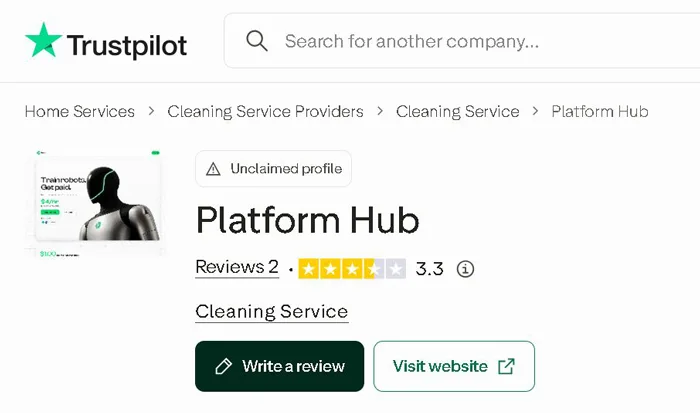
The score is 3.3 out of 5, labeled “Average,” with three full stars, one half star and one empty star. Trustpilot hasn’t hidden the score, and there’s no red fraud alert on the page. You can see the score at the top of the profile and in the All reviews box.
The score comes only from those two reviews, at 50% each, and there are none at 5, 3 or 2 stars. Neither reviewer describes anything they did on Hub. The 4-star review is from India, posted October 5, 2026, and it’s two words, both misspelled: “I intrested.” From that alone, it’s clear the person hadn’t tested the app or withdrawn any money. The 1-star review is from the Philippines, posted June 11, 2026. It says to never trust the site and that .xyz domains are a scam. It doesn’t say a word about withdrawals or about any task they did on Hub.
Both reviewers are from countries where Hub’s recording programs aren’t even available. Shift is for the US, and Hub Capture is for the Americas.
Usually, when you’re looking at a site for making money online, it’s a good idea to check Trustpilot first, because what you’re looking for there is what hundreds of people say after trying to withdraw their money. This page has no reviews from anyone who has done tasks on Hub. So the 3.3 doesn’t tell you whether the site is safe or whether it’s worth your time.
Reviews from people who actually work on Hub are somewhere else. On Google Play, Hub Capture has over 100,000 downloads and a rating of 2.6 out of 5 from over 568 reviews, as of November 2026. On the App Store, the rating is 4.0 out of 5 from 22 ratings, as of November 18, 2026. There’s also Reclame Aqui, Brazil’s consumer complaint site. On all three, you’ll find real accounts of slow support and blocked withdrawals from late 2026.
My advice is to set the 3.3 score aside. Two reviews that don’t go into any detail don’t prove the site is trustworthy, and they don’t prove it isn’t. Judge Hub by its current app store ratings, its strict country limits and what users say about their withdrawals.
How do you sign up for Hub.xyz?
Anyone who’s at least 18, from any country, can create an account on Hub, and signing up is free. Hub sends you the Starter Kit (the head strap and the phone mount) for free too, if you meet the requirements. But you can only film paid tasks if you live in the Americas. The Shift app, the one for filming at work, only works in the United States. If you’re at least 18 and you live in the United States or another country in the Americas, opening an account is quick and you don’t risk anything.
If you’re in Europe or Asia, the form lets you create an account and get into the dashboard, just like anyone else. Only once you’re in there do you find out that there’s nothing you can film for money, because Shift is only for the United States and the Hub Capture tasks are only for the Americas. By then you’ve already given Hub your name and email, so check your region first. If you use a VPN to look like you’re in another country, your account gets permanently blocked right away.
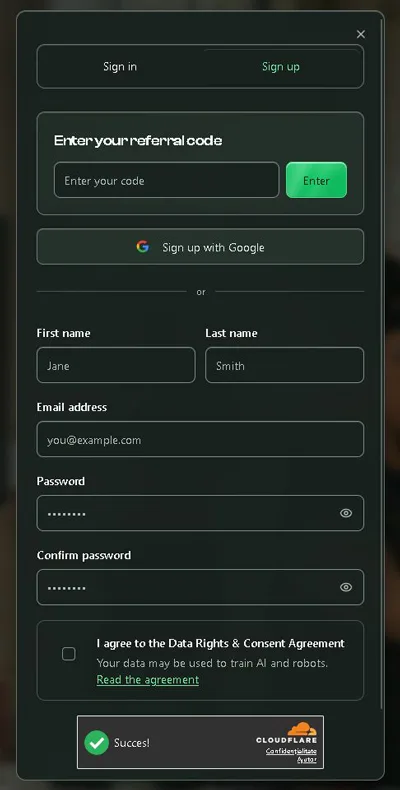
Creating the account takes less than 2 minutes. When you click Sign up on the home page, a dark window opens right away, and I thought it looked clean and modern. It has a Google button and an email form, where you enter your first name, last name, email address and a password, and then confirm it. Above that is the box for a referral code, with an Enter button. You only fill it in if someone invited you. At the bottom, an automatic Cloudflare check runs to stop bots. It’s the same check you see when you log in.
The form also has a checkbox right above the green Sign up button, and you can’t sign up without checking it. By checking it, you accept the Data Rights & Consent Agreement, and the text next to it says “Your data may be used to train AI and robots.” Read the agreement before you check the box. What you film and sell to Hub doesn’t stay with Hub alone. That’s because, according to the Privacy Policy, Hub can give your videos to outside robotics companies under a permanent license, along with your GPS location, recorded second by second, and the data from your motion sensors.
When you submit the form, your account isn’t active yet. You get a link by email, and only after you click it can you get into the dashboard. If the email ends up in spam, you can request it again with the Resend email button.
To film and get paid, you have a few more steps to take after you sign up. You’re not asked for a photo ID at the start, so you don’t need to upload a passport or driver’s license just to create your account. You only need the ID when you cash out, as I wrote above in the part about withdrawing your money. Your phone number isn’t required in the sign-up window either, but Hub asks for it in your account before you link the Shift app or order the Starter Kit.
How do you verify your identity on Hub?
On Hub, verifying your identity unlocks withdrawals and the protected tasks, which are the ones that pay better. But outside the Americas, it doesn’t unlock all of them. The core recordings catalog on app.hub.xyz and Hub Facts are for people in the Americas, and Shift workplace is only for people in the United States. If you’re in Europe, Asia or somewhere else, verifying with Didit won’t get you into the video tasks reserved for the US or the Americas. So before you send in your ID, check whether there are tasks for your country.
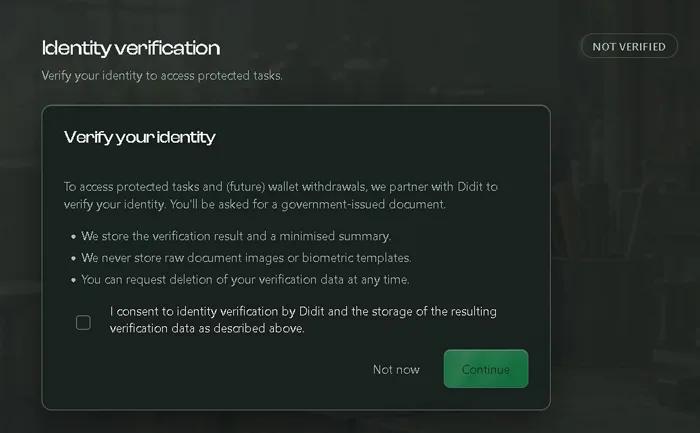
Until you verify, it says “NOT VERIFIED” next to your name, with a “Verify identity” button beside it. Every site for making money online asks for this sooner or later. On Hub, it isn’t complicated. It’s a regular scan with your phone’s camera, done through Didit, a service that’s separate from Hub.
When you’re 18, sending a site a photo of your ID feels like a lot. And it is a big deal, so don’t give your ID to just anyone who asks for it. Do your research and look at the details, even the small ones. With Hub, the good part is how it handles your data. Your ID is checked by Didit, a provider that specializes in identity verification and asks for a government-issued photo ID. On the consent screen, Hub says it keeps only the result (pass or fail) and a limited summary, not the images of your ID or the biometric data from your face. The same screen says you can ask to have your verification data deleted at any time.
Before you start, make sure the name on your profile is spelled exactly the way it is on your ID, that your ID is clearly visible, and that you’re somewhere with good light. In late 2026, some users wrote that their accounts ended up locked after a selfie that didn’t pass or after an automatic fraud check, and replies from [email protected] were slow to come.
There are five steps:
- Start the verification from one of these three places:
- Profile: the avatar in the top right, then the gold “Verify identity” button under your email
- Settings: “Verification” in the left menu, then the green “Start verification” button
- Balance: “BALANCE” in the top right, then scroll down to the locked withdrawal box, then “Verify identity”
- On the dark screen with the data policy, you have to check the box agreeing to verification through Didit and to keeping the data that comes out of it. Click the green “Continue” button to move on, or “Not now” to put it off.
- The rest happens on your phone, because you can’t finish the verification using your computer’s webcam. Use your phone to scan the QR code on the “Continue on your phone” screen, or use “Copy link” to send yourself the verify.didit.me link. You can change the language from the menu in the top right.
- On verify.didit.me, Didit asks you for two photos: one of your ID card, passport or driver’s license, and a live selfie, which is also mentioned under the QR code. They show that you’re at least 18 and that the ID is yours.
- You don’t have to click anything else on your computer. Once you finish on your phone, the status changes on its own from “NOT VERIFIED” to “verified”.
Can you use it on your phone?
You can’t record anything from your phone’s browser, whether it’s Chrome or Safari, because app.hub.xyz is only a dashboard. Everything happens in Hub Data’s official app. You download it to your phone, you film the tasks there, and that’s where your online earnings come from.
Before you install it, check whether there are open tasks in your region. Otherwise, you won’t have anything to record.
The app you install is Hub Capture, from the App Store or Google Play, and it’s where most of the work happens. People in the United States also use Shift. They join with an invite code and use the app to record their paid shifts at work.
In Hub Capture, “Programs near you” shows the programs in your area, and “See the rate” shows how much each one pays. The store preview lists “Washing Clothes” and “Record at Home,” for example, both at $10.00. “Follow the steps” has the step-by-step instructions, and “Recording history” lets you see the review result for each clip.
Hub Capture isn’t the website in app form. It’s built for phones, and Hub keeps it up to date. On Google Play, where it has 100K+ downloads, it was last updated on November 27, 2026. On the App Store, it’s on version 2.0.18, updated November 18, 2026. It does have crashes and loading problems, though. Hub admits this itself in its update notes from November 18, 2026: the app would close on the welcome screen and freeze when you opened the camera. Recent updates have improved camera stability on iPhone and Samsung Galaxy.
The battery drains fast and older phones heat up. That’s because while you’re recording, the app films HD video nonstop, logs your GPS location once a second without rounding it, and reads the motion sensors. For long sessions, keep your phone plugged into a power bank.
Then there’s payment. As of November 2026, people on iOS and Android are complaining that once they’ve built up a balance, the money is slow to come through, even though their recordings went fine. To find out early how it goes for you, make a small withdrawal as soon as your evaluation clips pass.
Is Hub.xyz worth it?
Hub is only worth it for a very small group of people, and even they need to be careful. The company is real, but right now it’s hard to get your money into your bank account, and that’s a big problem.
I didn’t find any warnings from authorities or any lawsuits against the company in official US and Brazilian records. It’s registered and has real investors. It’s not a scam. The money is a different story, and the people who work on Hub say so plainly themselves: in October 2026, they complained about delayed withdrawals and frozen accounts. The Terms say the company can decide to hold your earnings “under review” for up to 30 days. When you film for one of Hub’s partners, the partner decides. It can reject your work, and Hub doesn’t get involved.
The idea itself is real: you film what you do every day, and the footage is used to train AI. You wear a head strap, which you get for free, and film your hands while you do chores around the house or tasks at work. You don’t need a resume, you don’t talk to the camera, and you don’t edit anything. Pay is by the hour: $5 at home, $6 at work, up to $8 or $9 with the boosted rate, and up to $20 for US Shift tasks. The rates are posted publicly, and they’re pretty clear compared to a lot of other sites that pay you per task.
It’s only worth it if you’re at least 18 and live in the US or in a part of the Americas where Hub is active. To film at work, you need clear, written permission from your boss. At home, you need plenty of chores to film, in good lighting. You also need to be okay with handing over your footage and your GPS location second by second, and cash out your balance right away every time you reach the withdrawal threshold in the app. If, on top of that, you accept the strict anti-fraud rules, have a compatible phone, and can live with the idea that your money might be stuck for a few weeks, you can try it.
If you live outside the Americas, it’s not for you. It’s not for paying rent or bills either, and it’s not for you if you can’t stand unclear withdrawal rules and slow support. And if you want extra income you can rely on and get quickly, the current payment delays and the holds of up to 30 days in the Terms mean you’re probably better off looking for something else until Hub catches up on the payments it’s behind on.
If you’ve tried Hub, I’d love to hear how it went for you. You can also leave me comments or questions below.